
Publish, verify, and schedule MQTT messages
Subscribe a receiving client, publish MQTT 5 JSON, verify delivery and properties in Trace, then run and stop a bounded scheduled message.
- Author:
- Mqttable
- Updated:
On this page7 sections
Loading...
Subscribe a receiving client, publish MQTT 5 JSON, verify delivery and properties in Trace, then run and stop a bounded scheduled message.
Loading...
This guide proves two outcomes in one dedicated test workspace: one MQTT 5 JSON message reaches an independent subscriber with its properties intact, and a five-second Scheduled Message stops after you remove it. Reading the screenshots is enough to understand the workflow, but running it requires Mqttable and a Broker you own or are authorized to test. Mqttable does not include an MQTT Broker.
Open Connections and select the dedicated Docs Message Demo workspace. The tutorial example uses these fixed identities, Topic, and original loopback endpoint:
Docs Message Demomqtt://127.0.0.1:2883publisher with Client ID mqttable-docs-publisher-01subscriber with Client ID mqttable-docs-subscriber-01mqttable/docs/message-flowThe light screenshots use an isolated listener at mqtt://127.0.0.1:18883; use the actual port of your authorized test Broker. The guide supplies every name, Client ID, Topic, Payload, and property value; Mqttable does not generate them. If you do not yet have Mqttable, start with MQTT Quickstart. Use Broker and connection settings to create the two MQTT 5 clients on an equivalent authorized test endpoint. Do not continue until both rows show Connected.
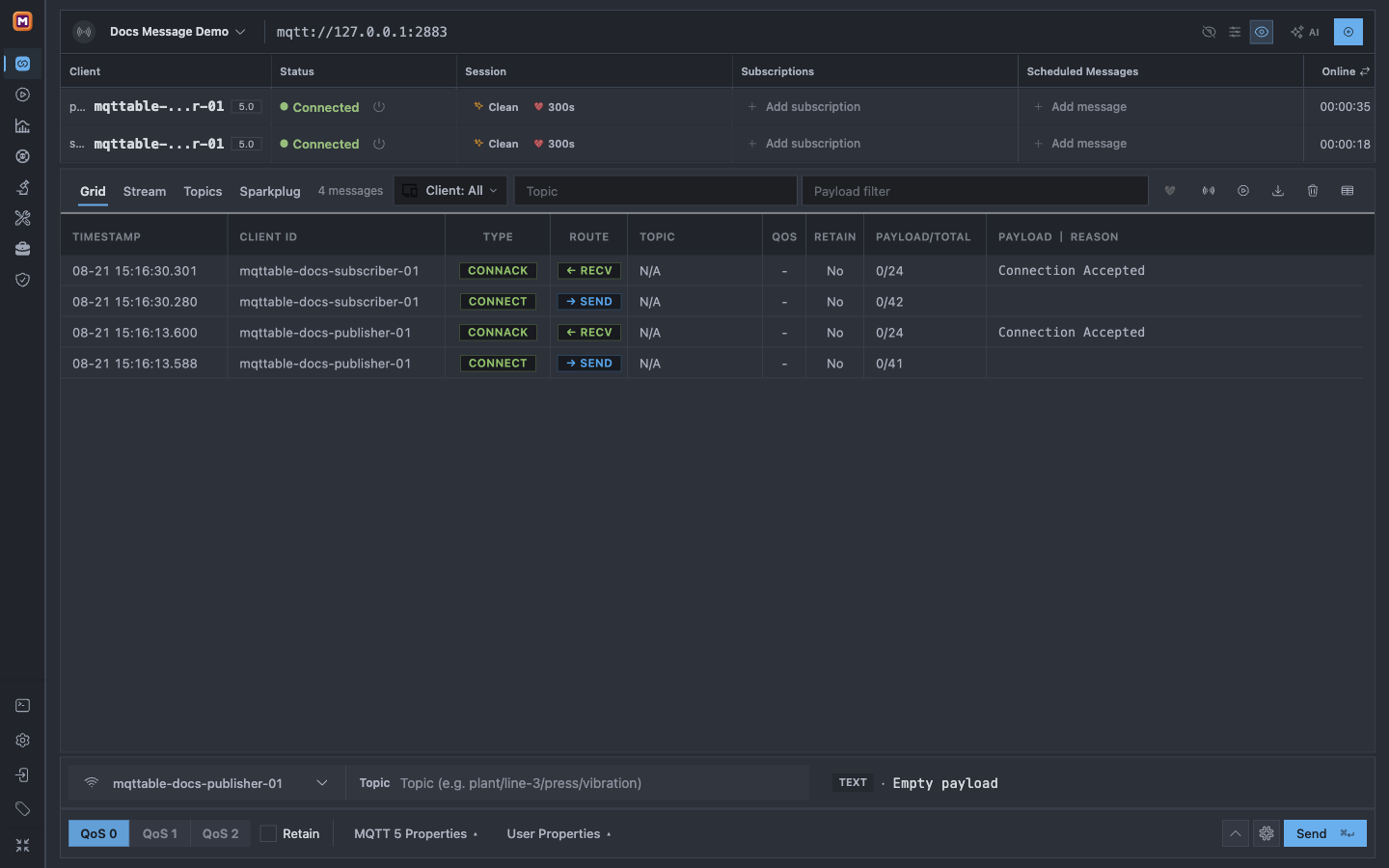
The dedicated workspace starts with two independent MQTT 5 sessions and no tutorial Subscription or Scheduled Message.
This workspace is disposable. Only a dedicated tutorial workspace may be cleared or deleted later; never clear a shared Broker's Trace or delete a production configuration for this guide.
On the subscriber row, select Add subscription and enter:
subscribermqttable/docs/message-flow7QoS, RH 0, No Local off, and Retain as Published off are ordinary delivery controls. The form defaults to QoS 0; this guide changes it to QoS 1 so the Broker returns acknowledgement evidence. The identifier 7 is a tutorial value supplied here, not a random value generated by Mqttable.
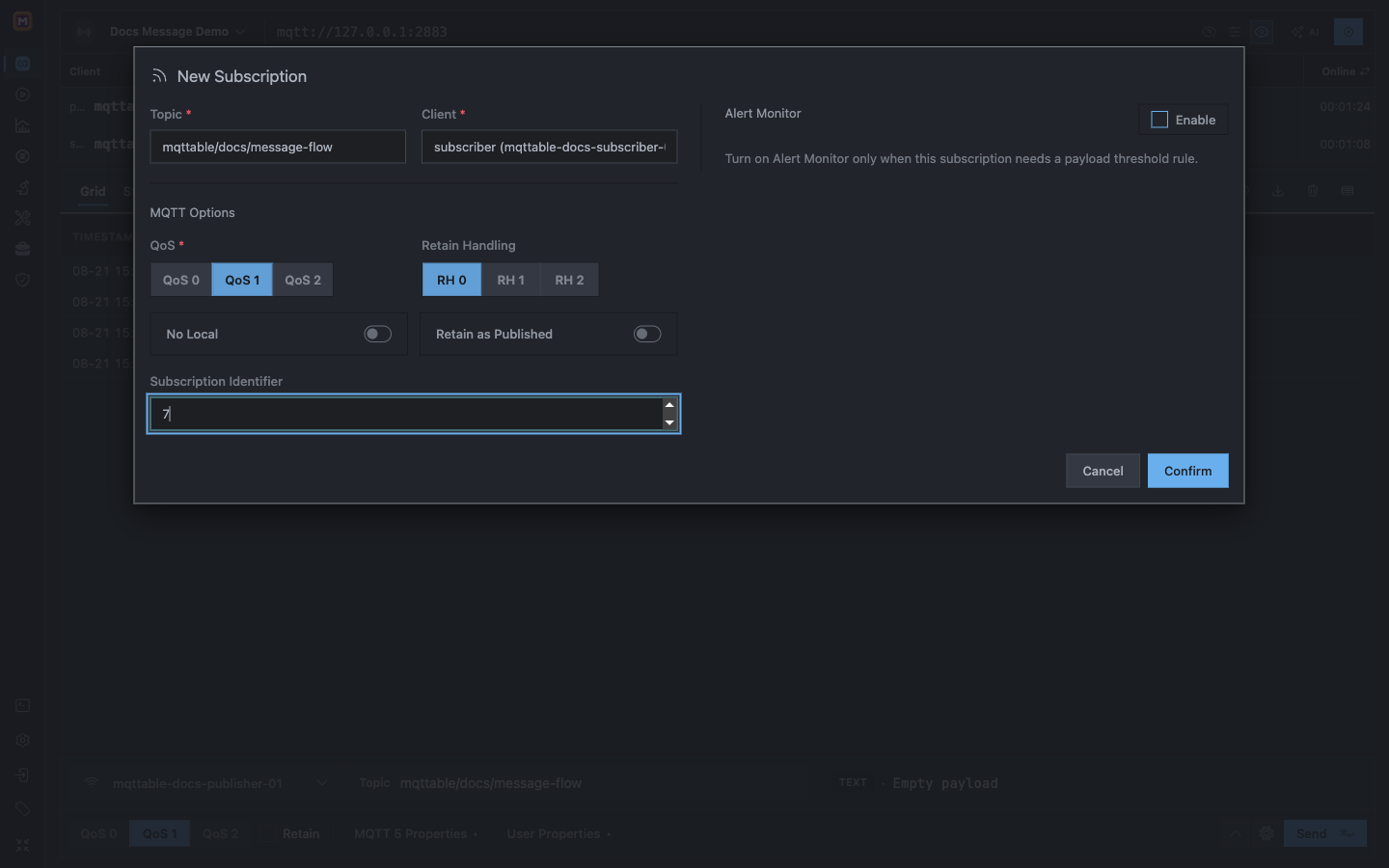
Configure the exact receiving session and MQTT 5 subscription options before confirming.
Select Confirm. Stop if the subscriber row does not show the Topic with QoS1 and ID:7, or if Trace does not report a successful SUBACK.
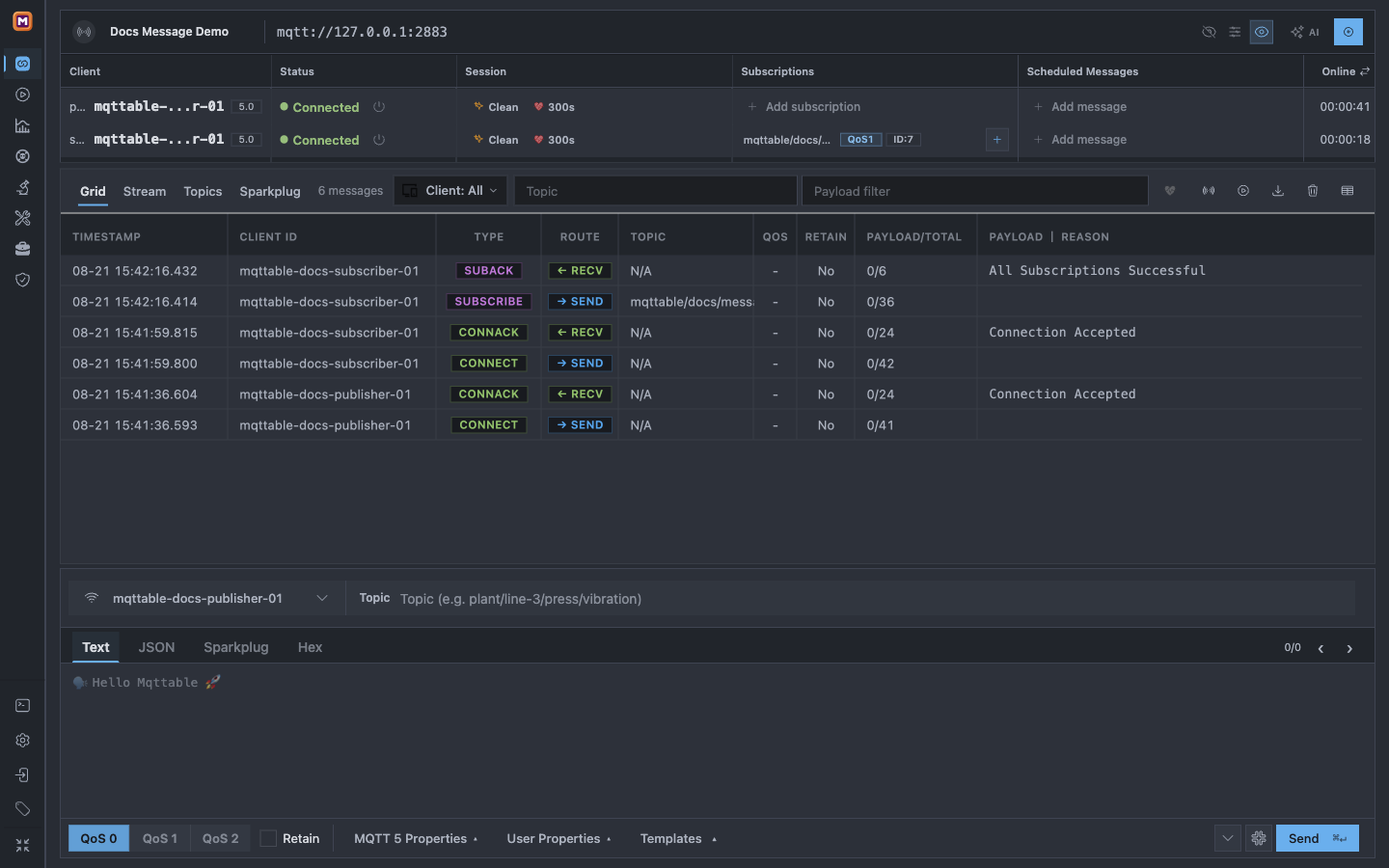
The Subscription pill and SUBACK prove that the Broker accepted the request; no application message has arrived yet.
Because Docs Message Demo exists only for this guide, select Clear messages and confirm the workspace name before continuing. This creates an empty Trace baseline without deleting unrelated evidence.
In the Composer, select publisher and enter:
mqttable/docs/message-flow{
"sensor": "temp-01",
"value": 23.4,
"unit": "C",
"mode": "direct"
}
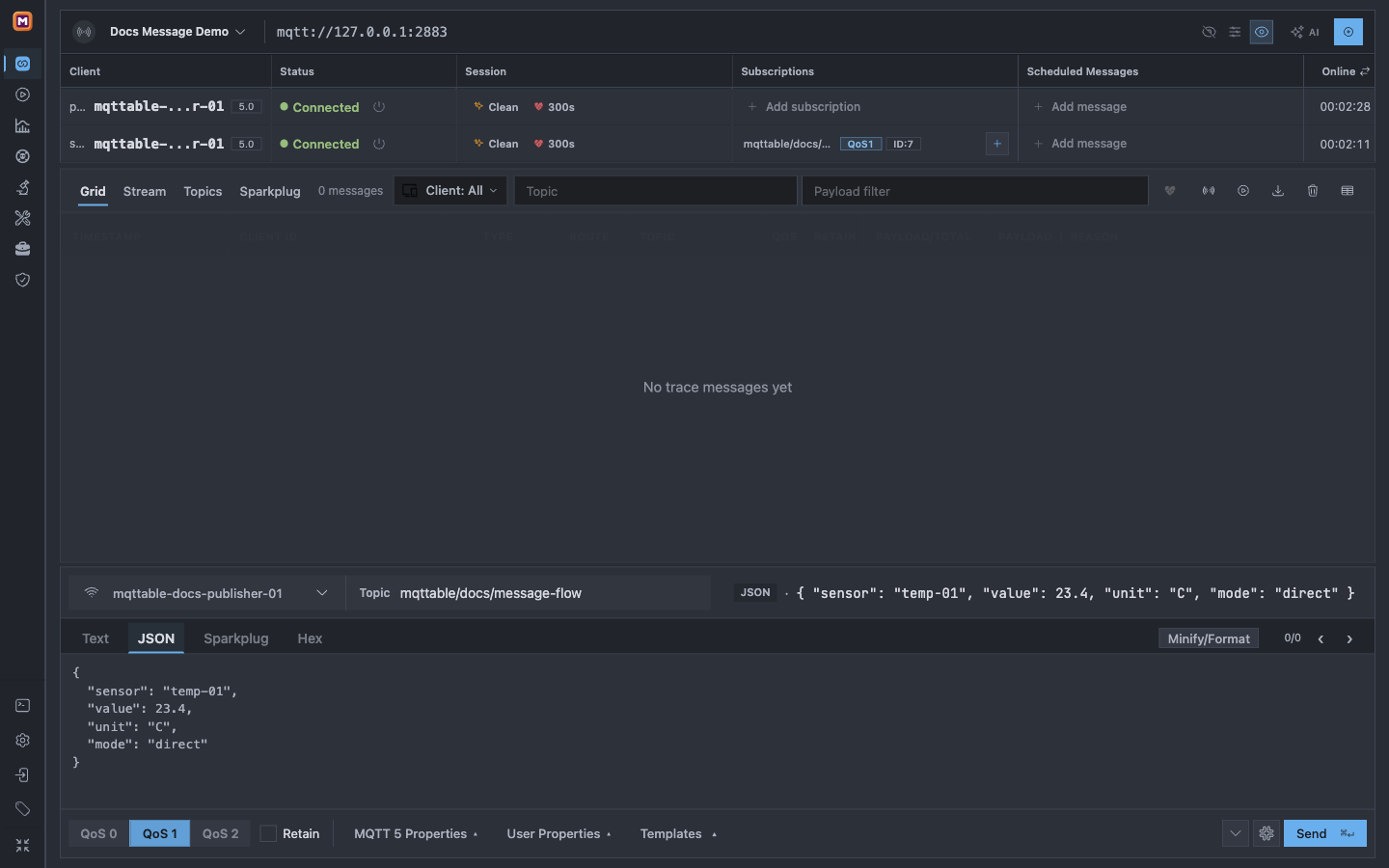
Prepare one identifiable JSON message while Trace still contains zero rows.
Open MQTT 5 Properties and set:
application/json30 seconds0Then add one User Property: key source, value docs-message-guide.
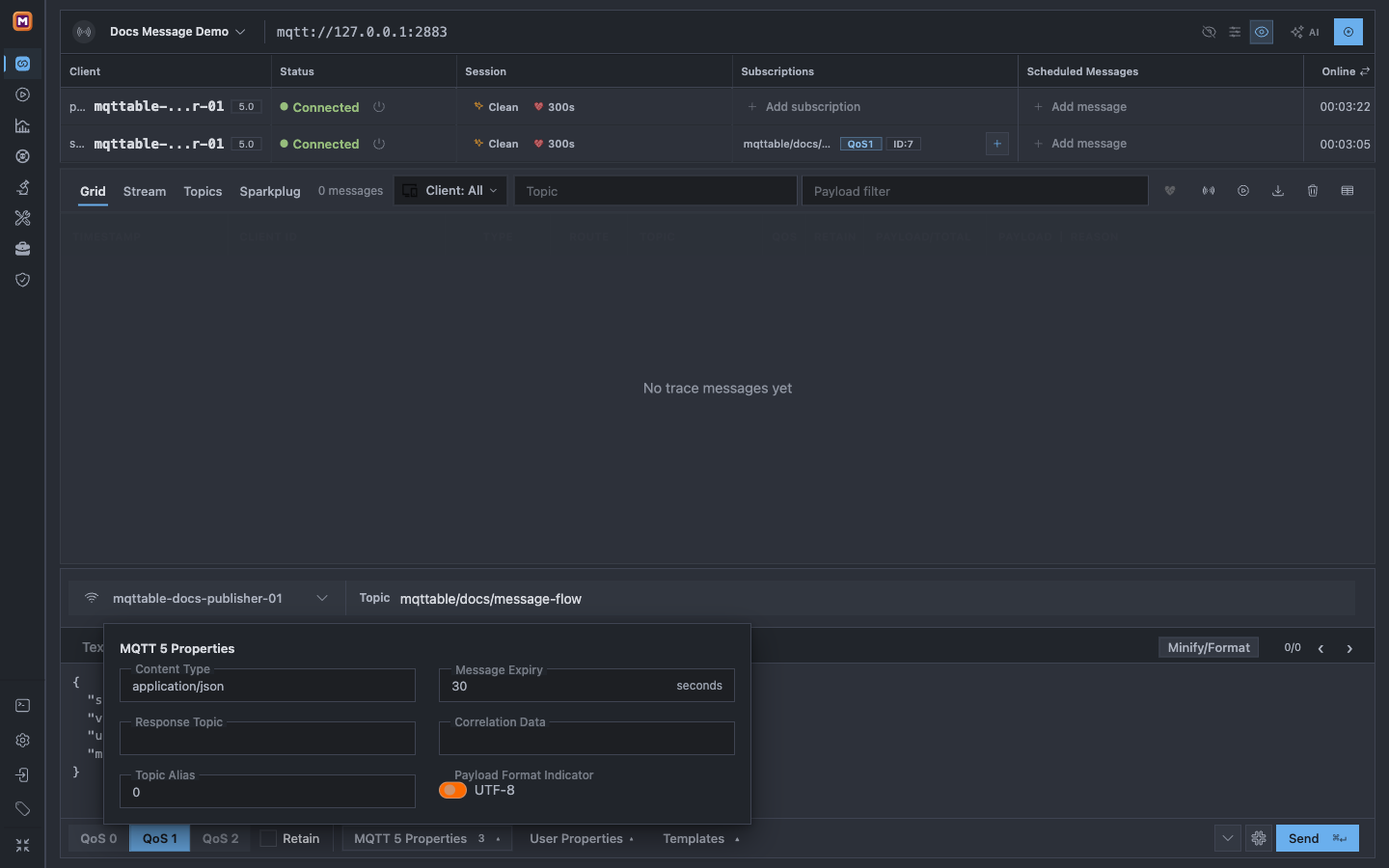
The tutorial uses three MQTT 5 properties and one non-sensitive User Property that can be checked after delivery.
Message Expiry limits how long the Broker may retain an undelivered test message; it does not replace application-level stale-data checks. Never put passwords, tokens, personal data, or customer identifiers in the Payload or User Properties.
Select Send once, then minimize the Composer. Pressing Send is not the success condition.
Trace should show four related QoS 1 rows:
publisher: PUBLISH → SENDpublisher: PUBACK ← RECVsubscriber: PUBLISH ← RECVsubscriber: PUBACK → SEND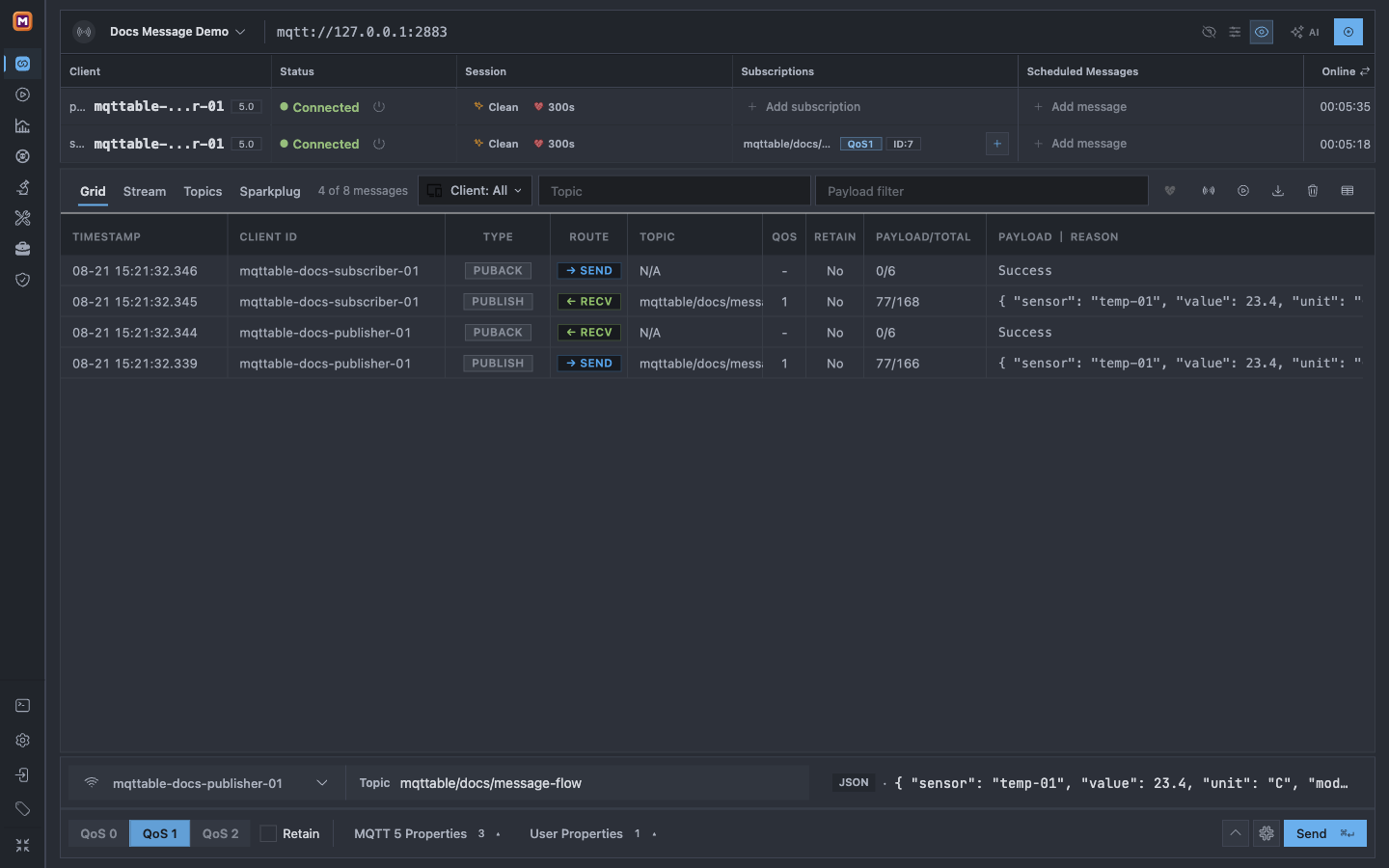
Two independent Client IDs, matching Topic and Payload, and both PUBACK directions prove the complete QoS 1 route.
Open subscriber / PUBLISH / RECV. In Message Details, verify the Topic, JSON, QoS, Retain state, Message Attributes, Subscription Identifier, and User Property.
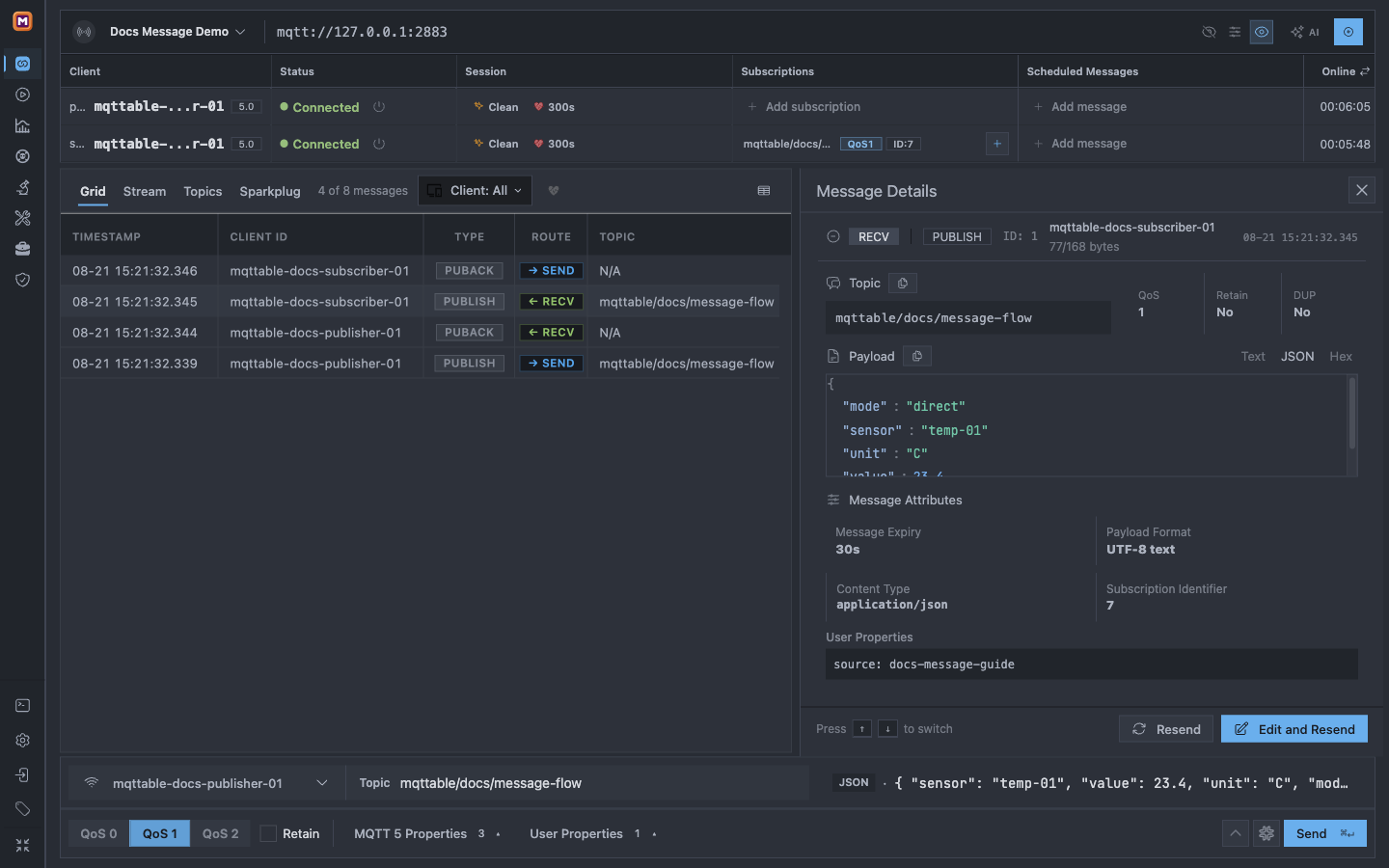
Message Details is the second layer of evidence: it verifies what the subscriber actually received, not only what the publisher requested.
A publisher PUBACK without a subscriber PUBLISH proves only that the Broker accepted the publication. Check the Topic Filter, subscriber status, No Local setting, and Broker ACL before continuing.
On the publisher row, select Add message and enter:
mqttable/docs/message-flow5 secondsapplication/json30 secondssource=docs-message-guide{
"sensor": "temp-01",
"value": 23.4,
"unit": "C",
"mode": "scheduled"
}
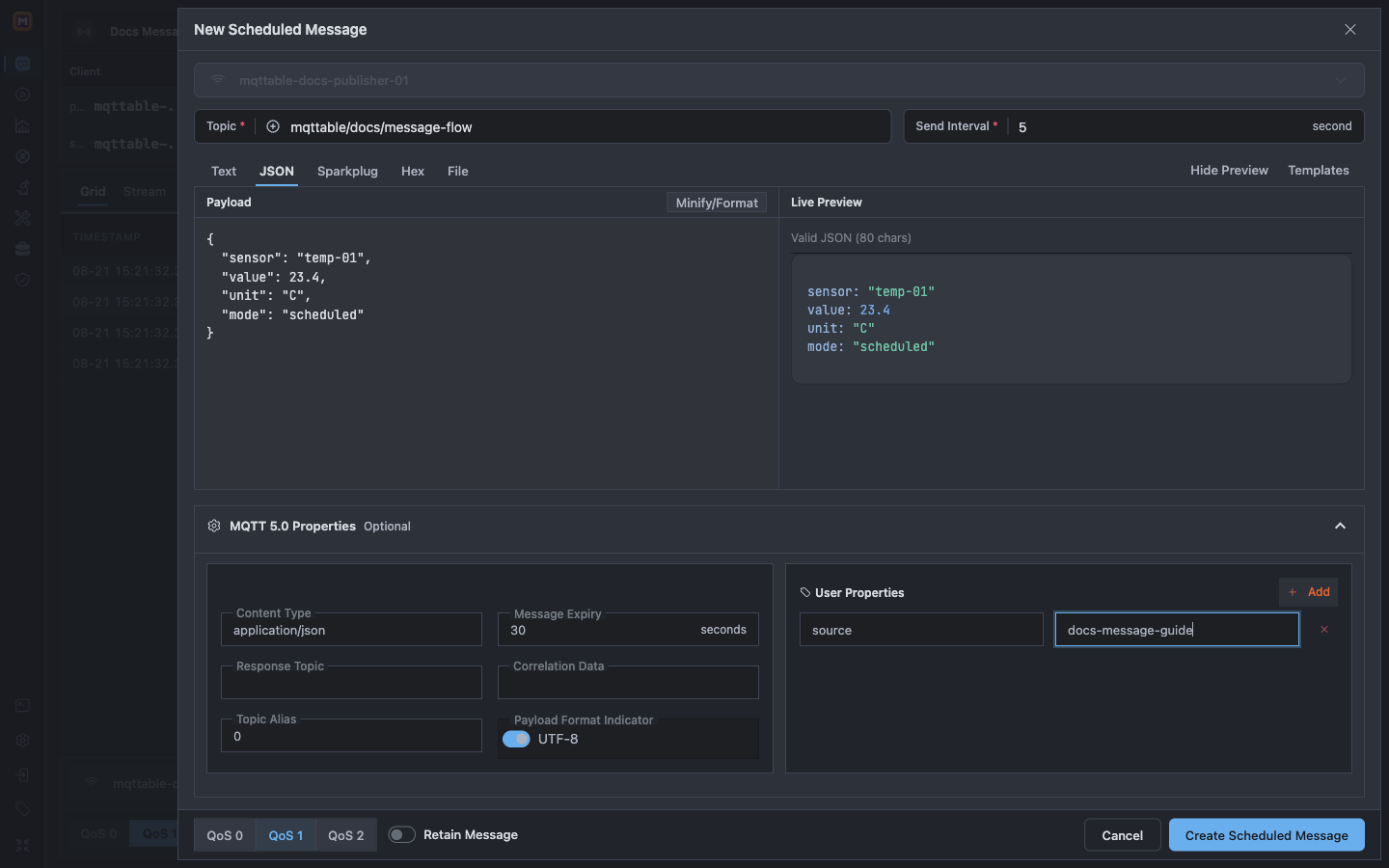
The schedule repeats one validated JSON publication every five seconds; the form has no message-count or end-time field.
Select Create Scheduled Message. The first publication occurs after one complete five-second interval. In Trace, select subscriber, filter Topic to mqttable/docs/message-flow, and filter Payload to scheduled. Wait until at least three received PUBLISH rows are visible, then record the current filtered count.
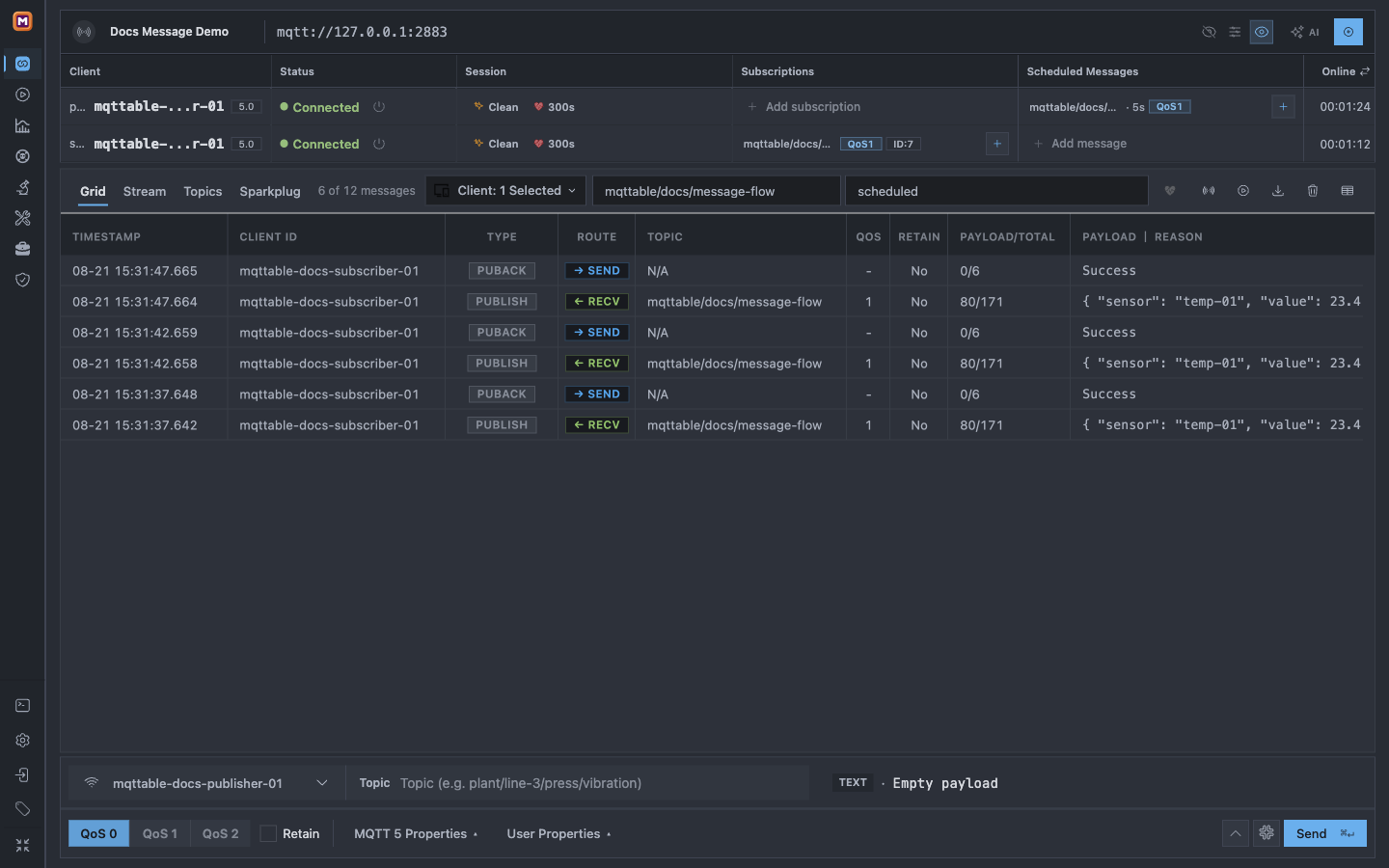
Three received PUBLISH rows at five-second intervals prove that the schedule is running on publisher and reaching subscriber.
Do not disconnect the Client as a substitute for cleanup. Scheduled Messages are saved with the Connection and can resume after reconnect. Select Remove scheduled message, then verify the exact Broker, Client ID, and Topic in the confirmation.
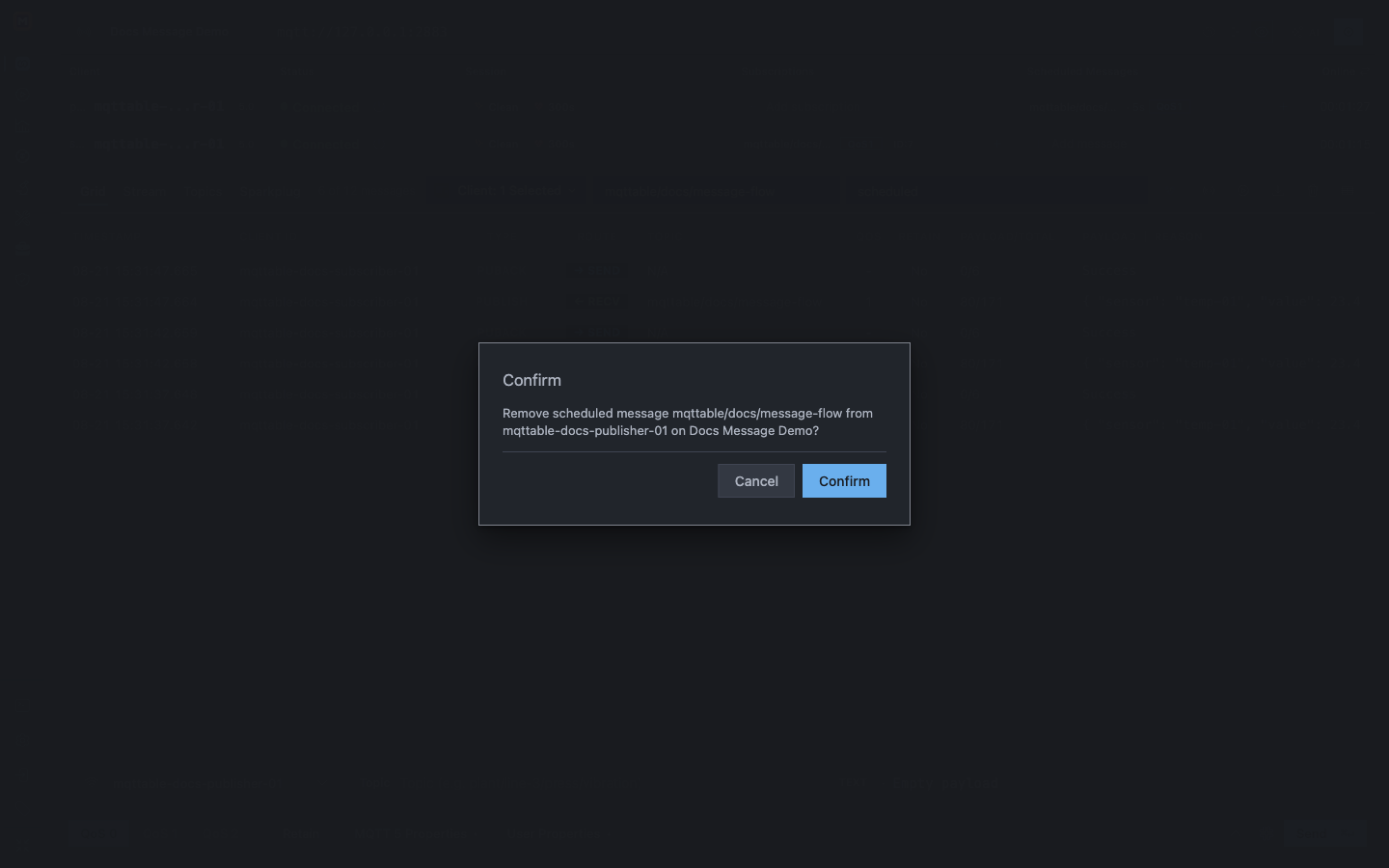
The confirmation names the exact Scheduled Message before deleting the persistent configuration.
Select Confirm, wait six seconds—one complete interval plus one second—and compare the filtered count with the value recorded immediately after confirmation. It must not increase, and the publisher row must show Add message instead of the schedule pill.
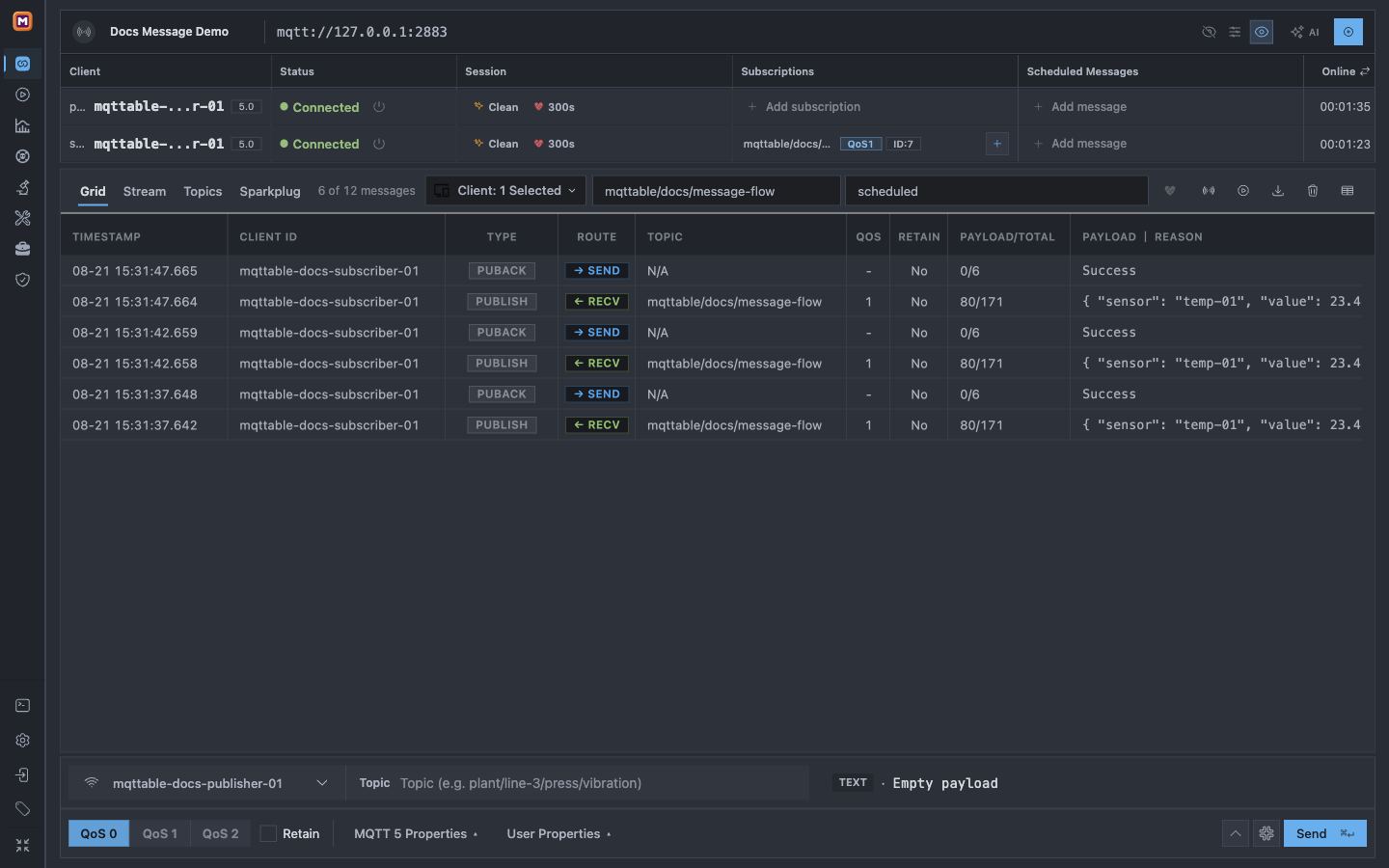
After one full interval without another row, the missing schedule pill and stable Trace count prove that repeated publishing stopped.
The tutorial created these exact resources:
Docs Message Demomqttable-docs-publisher-01 and mqttable-docs-subscriber-01mqttable/docs/message-flow on subscribermqttable/docs/message-flow on publisher—already removedDocs Message DemoOpen the Docs Message Demo Broker settings and select Delete. Do not use this step on a workspace that contains other tests.
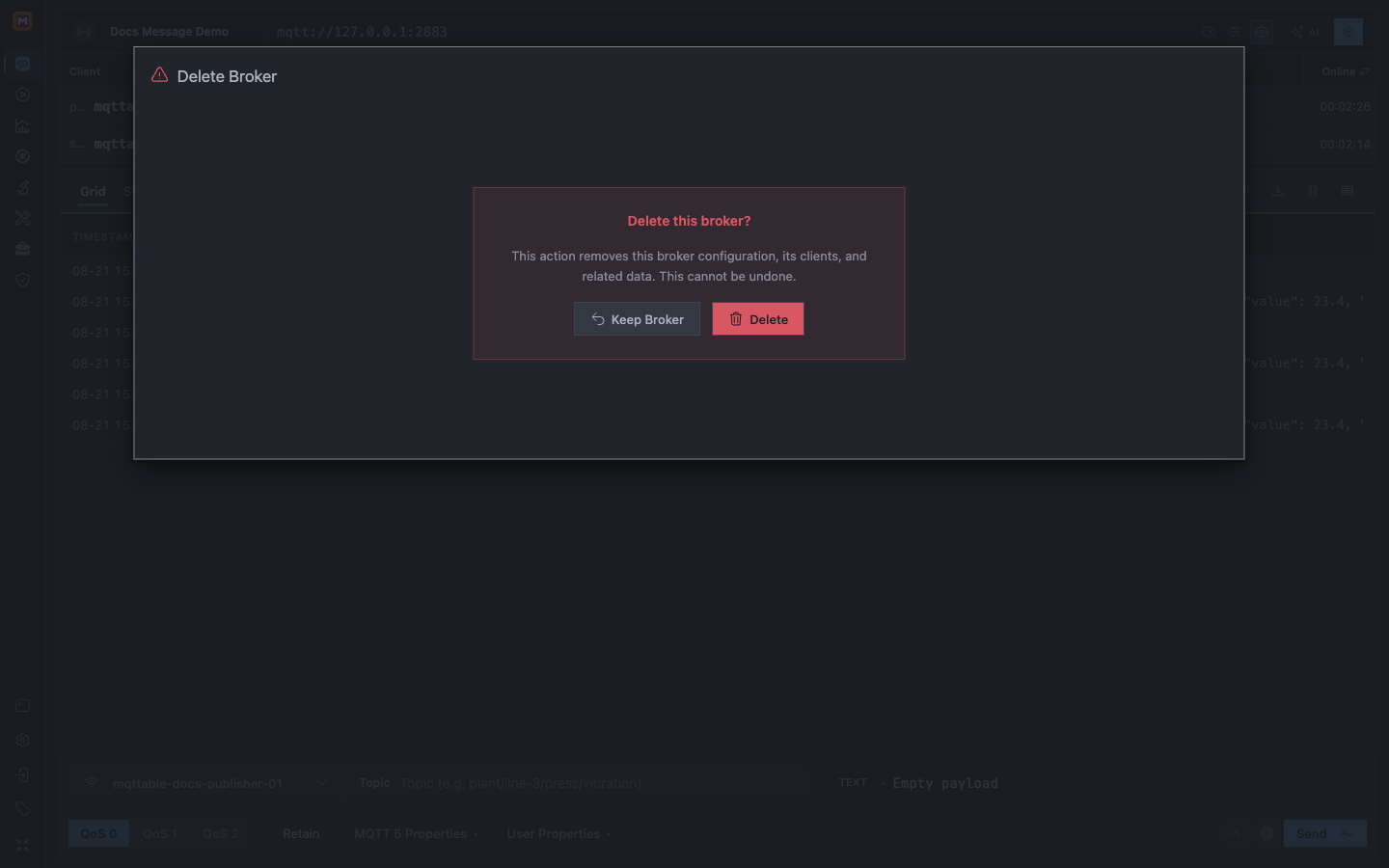
Delete the dedicated tutorial workspace only after the Scheduled Message has stopped.
Select Delete. You are finished when Docs Message Demo and both tutorial Client IDs are absent.
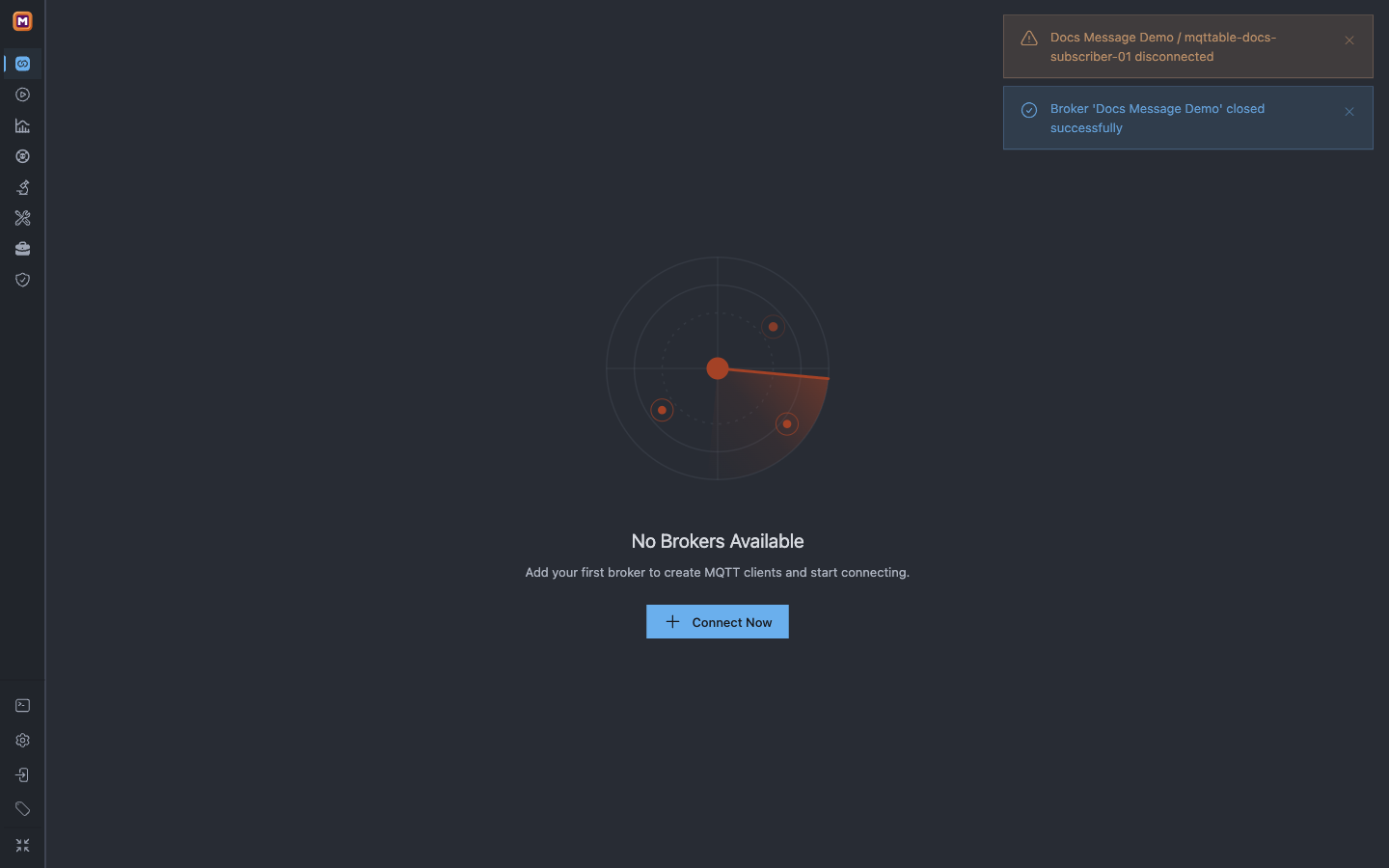
The dedicated Broker, Clients, Subscription, Schedule, and Trace are no longer present.
connections:write / messages:publish permissions. Stop on a Locked or permission error; do not invent a Local fallback.Sending exact bytes: choose Hex for a byte draft such as 41 42 00 FF. Composer and Send Window show the byte editor, ASCII, and the actual byte count without a duplicate saved-draft preview. Save draft is under More and does not send or create Payload history. Normal send, format changes, leaving Send Window, and Open in Binary capture the current draft; unfinished or invalid input cannot send the last valid projection. Hex source/template mode renders Liquid source automatically without a template-policy selector. Scheduled Messages, including the editor reused by Bench, retain their source text and use the same strict Hex contract; they do not gain workbench return permission. Bench renders Liquid in Hex source before strict decoding; it does not expand single-brace placeholders such as {index} in the decoded bytes. For supported template syntax in Composer and Send Window, keep the source/snapshot distinction clear: source renders on send, while a returned fixed snapshot remains fixed until you add template source. Binary tools explains import, inspection, and returning an authorized Hex draft.