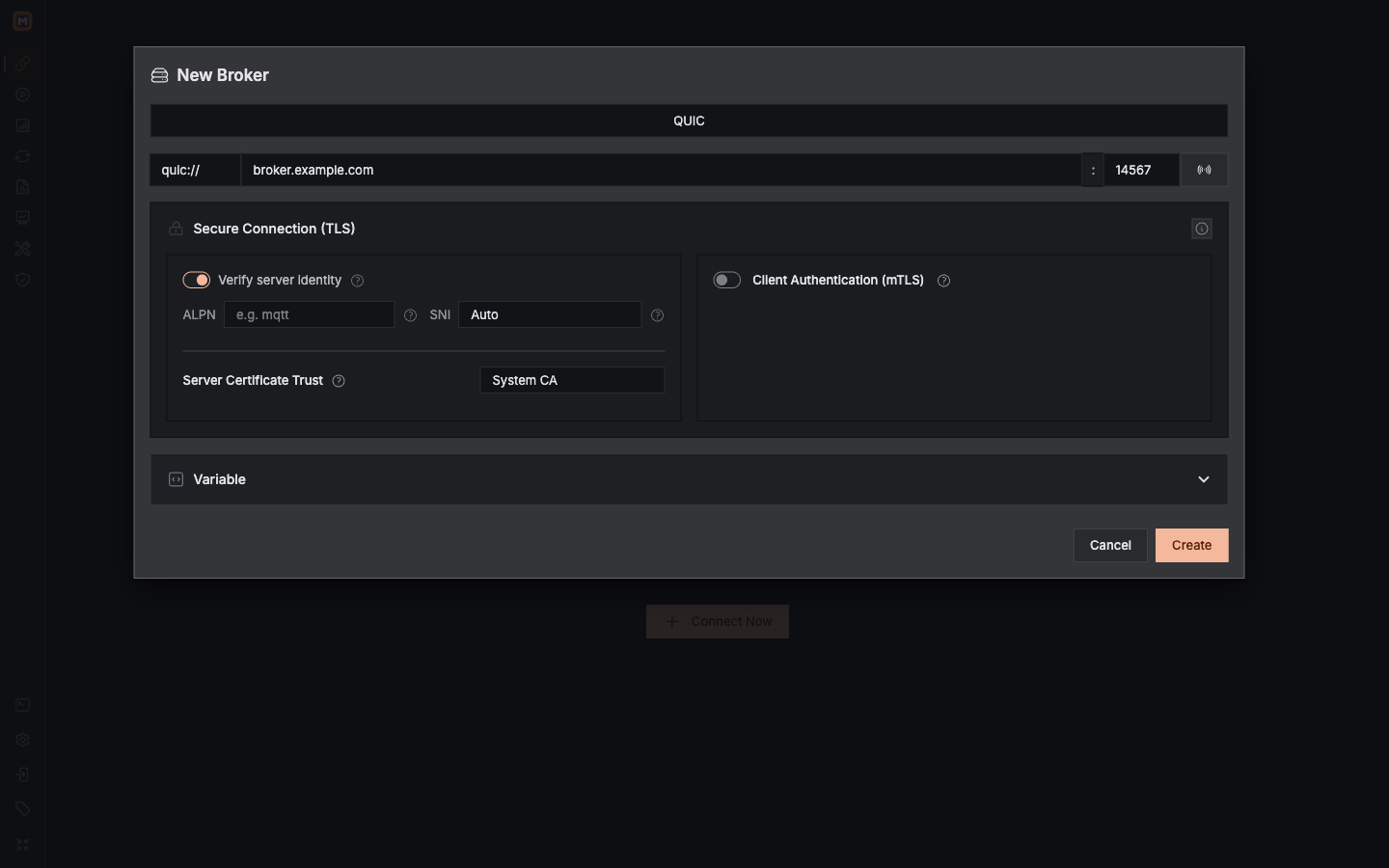
For mqtts, wss, or quic, use the TLS certificate guide to decide whether you need no upload, a CA certificate, or a CA plus client certificate and key. The broker.example.com values below are untested placeholders, not live endpoints.
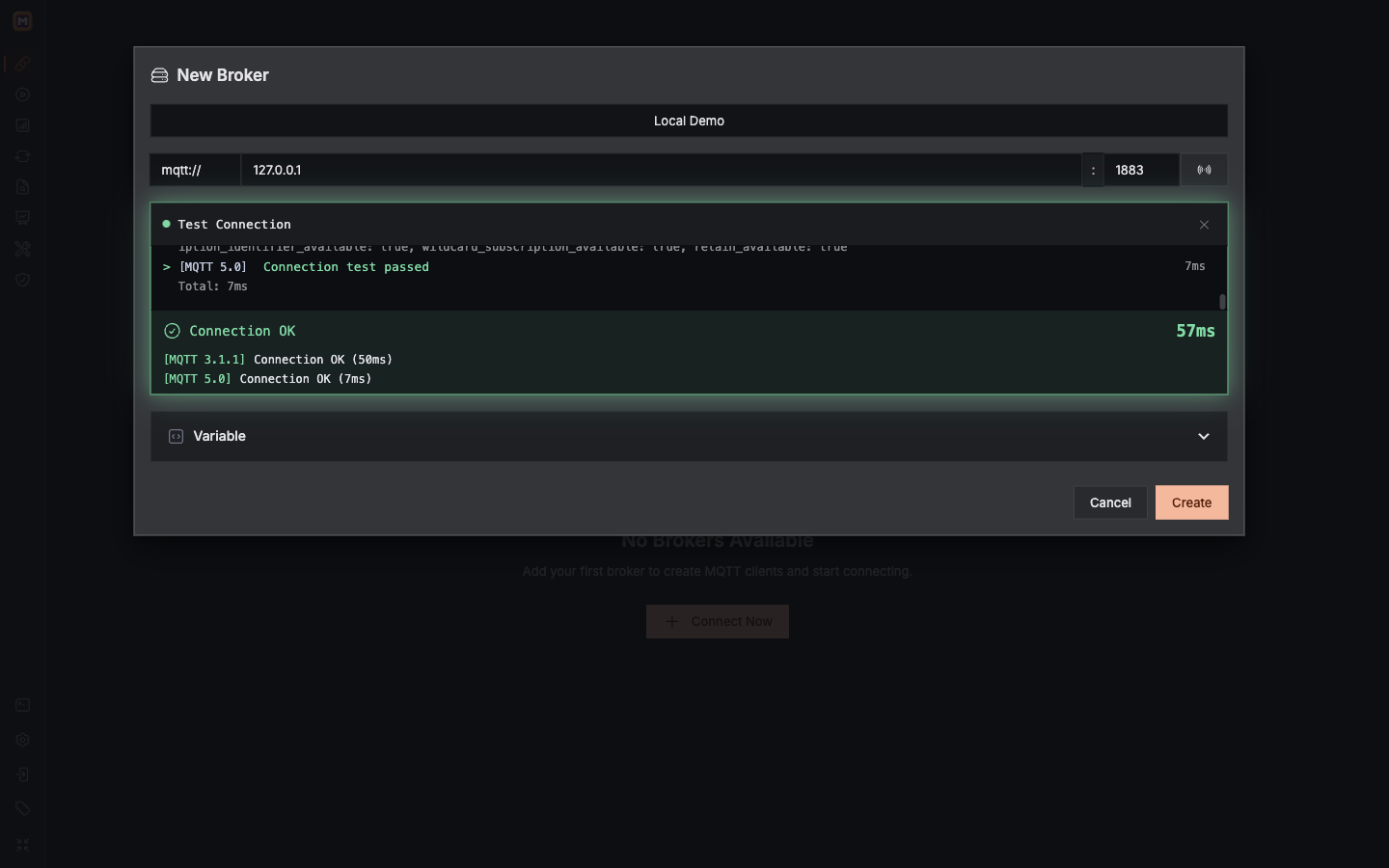
Use mqtt for a plain TCP listener. The green results show that this endpoint accepted test connections.
1mqtt selects the TCP transport.
2Host and Port identify the Broker listener.
3Test Connection checks the endpoint with temporary clients.
Screenshot note: the light loopback capture used isolated port 18883 because 1883 was already occupied. Use the actual port of your authorized local Broker.
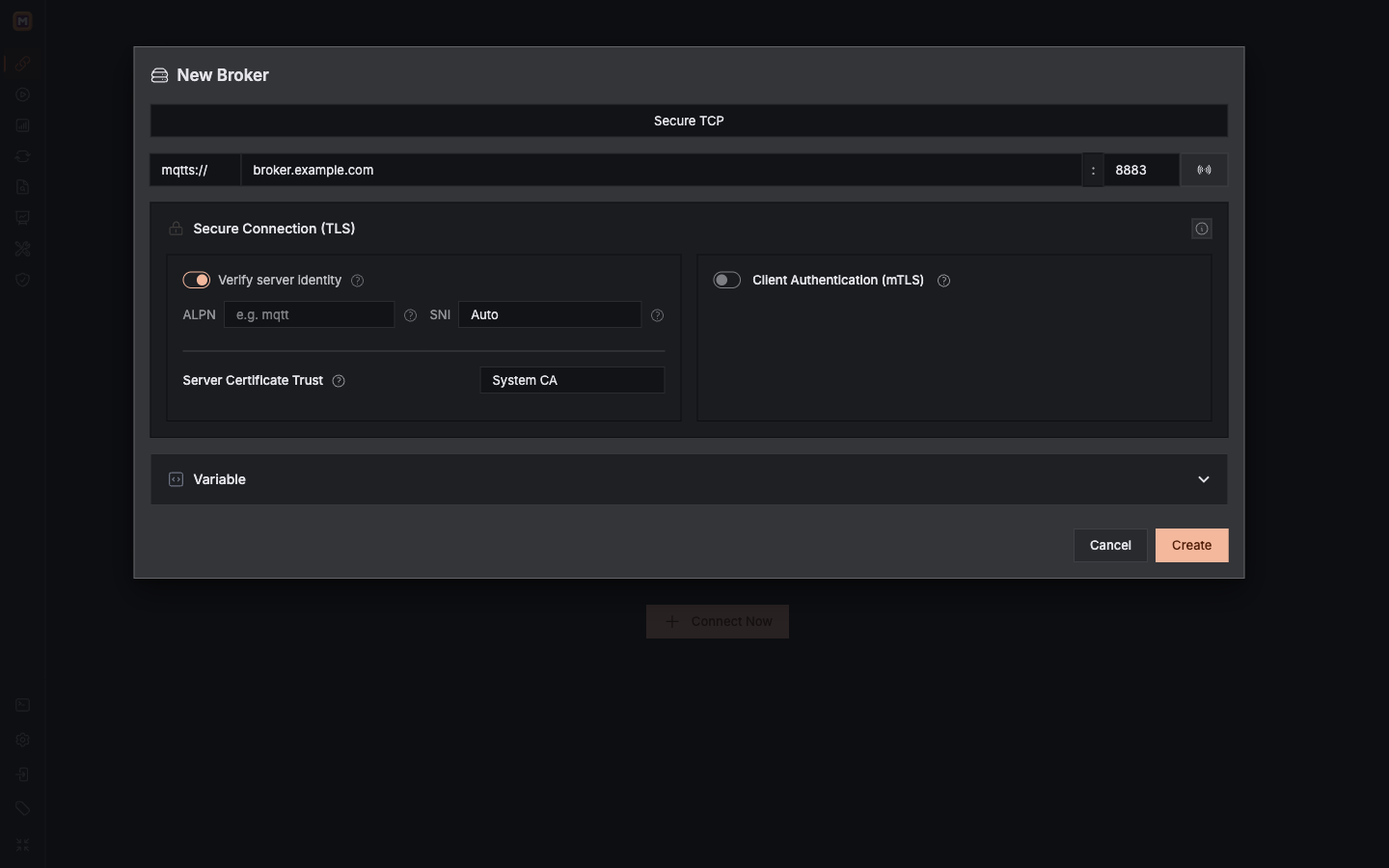
mqtts:// — TCP + TLS · default port 8883
Connects MQTT directly over TLS.
Verify server identity checks the Broker certificate. System CA fits public certificates; choose Custom CA for a private CA.
Leave SNI on Auto and ALPN empty unless the Broker specifies values. Enable mTLS only when it requires a client certificate and key.
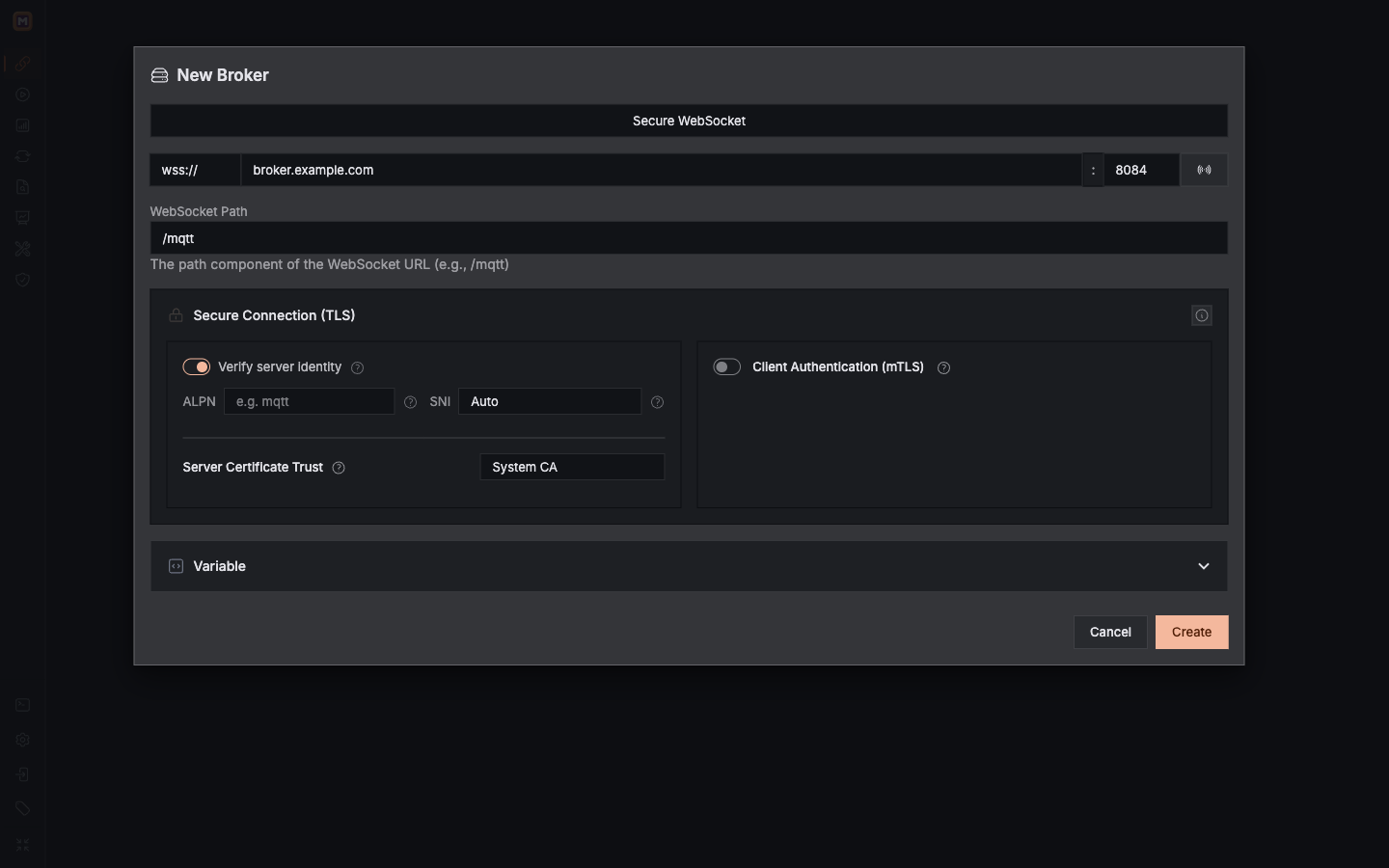
QUIC uses its own UDP listener and the same certificate controls as other secure transports.
1quic uses the Broker QUIC listener and UDP port.
2Server verification, CA trust, SNI, and ALPN must match the listener.
3mTLS adds a client certificate when required.
Select Test Connection, then Create. The Broker test sends no MQTT username or password, but uses the configured TLS settings, including client certificates when enabled. It reports each MQTT version separately; one accepted version and one rejected version is a partial success. Authentication refusal does not prevent saving the Broker. It does not verify publish or subscribe permissions.
Create an MQTT Connection
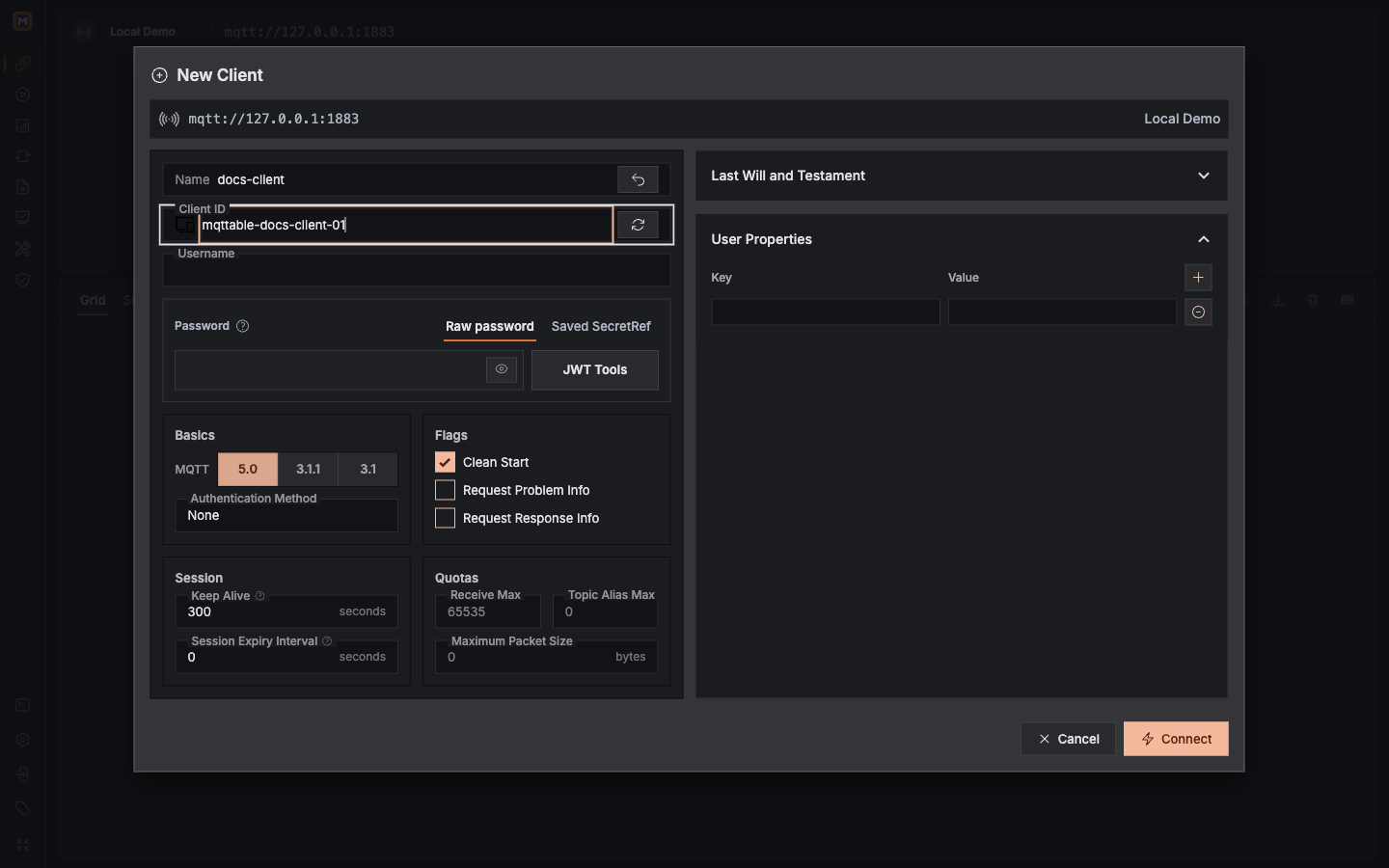
After saving the Broker, select New Client.
Name / Client ID: Name is only a display label. Client ID is the identity seen by the Broker and must be unique among connected clients. Keep it stable when resuming a session.
MQTT version: Prefer 5.0 when the Broker supports it, use 3.1.1 for devices that require it, and reserve 3.1 for identified legacy systems.
Authentication: With MQTT 5.0, select the None, Password, JWT, or SCRAM method required by the listener. Follow the authentication guide for credentials, SecretRef, JWT claims, and SCRAM requirements.
Clean Session / Clean Start: MQTT 3.1/3.1.1 shows Clean Session; turning it off requests session recovery and retention. MQTT 5 shows Clean Start, which controls whether an old session is discarded at connection time; Session Expiry Interval controls retention after disconnect. Keep it on for a first test. It is not an automatic-retry switch.
Keep Alive: Uses PINGREQ/PINGRESP when idle to check the connection. The default is 300 seconds; 0 disables MQTT Keep Alive.
Session Expiry Interval: In MQTT 5, 0 discards the session after disconnect, a positive value retains it for that many seconds, and 4294967295 means no expiry. Keep 0 for a first test.
Keep the remaining MQTT 5 options at their defaults unless the application requires them:
Receive Max / Topic Alias Max: Limit unacknowledged QoS 1/2 messages and accepted Topic aliases.
Maximum Packet Size: The largest MQTT packet the client accepts; a value that is too small rejects valid messages.
Request Problem Info: On allows diagnostic strings and user properties in packets where the protocol permits them; off sends Request-Problem-Information=0. It does not hide reason codes or prohibit information allowed in PUBLISH, CONNACK, or DISCONNECT.
Request Response Info: Requests Response Information in CONNACK; the Broker may omit it. It does not create a response subscription.
User Properties: Application metadata on CONNECT, not automatically copied to later publishes.
Last Will: Configure it only when consumers already agree on the Will Topic, Payload, and QoS.
Test Client authentication before saving
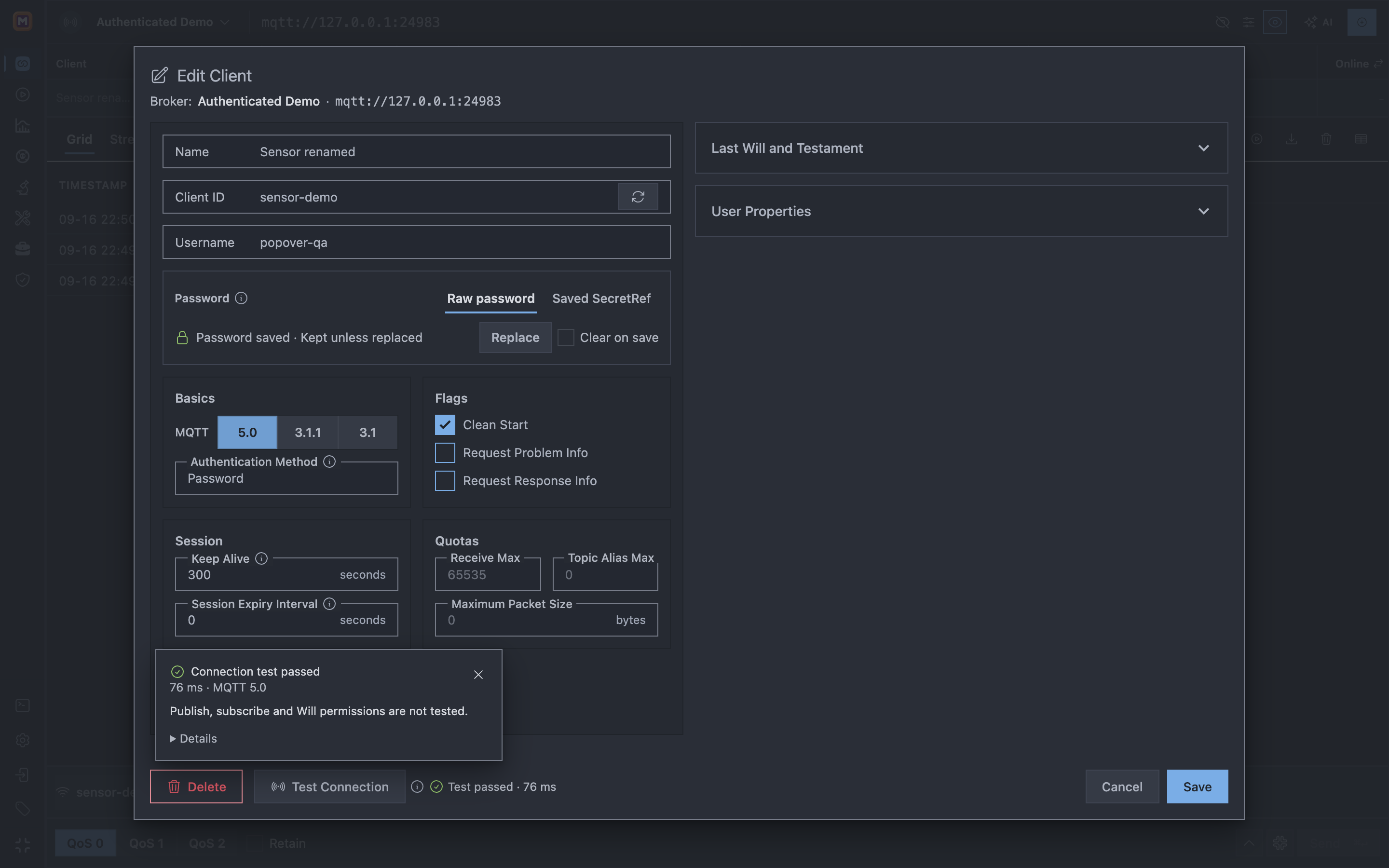
In Add client or Edit Client, select Test Connection to test the current form immediately. There is no second confirmation. The test uses the selected MQTT version and credentials, including an entered password or JWT, a retained saved password, a selected SecretRef, or SCRAM authentication. It does not save the form or start a persistent Client connection.
A compact popover above the button shows progress and the result. Details reveals the endpoint, Client ID, protocol and failure information without displaying secrets. Closing the popover or pressing Escape cancels a running test; after completion, closing it keeps the footer result. Select that result to view it again without retesting. Connection-setting changes clear the result; renaming the Client does not.
The test uses the real Client ID. It can disconnect another client with the same ID, trigger that client's Will, and affect Broker sessions and queued messages. The information icon explains this without requiring confirmation. The test itself does not register a Will, publish, subscribe or automatically reconnect. Test passed is not a persistent Connected state and does not verify message permissions.
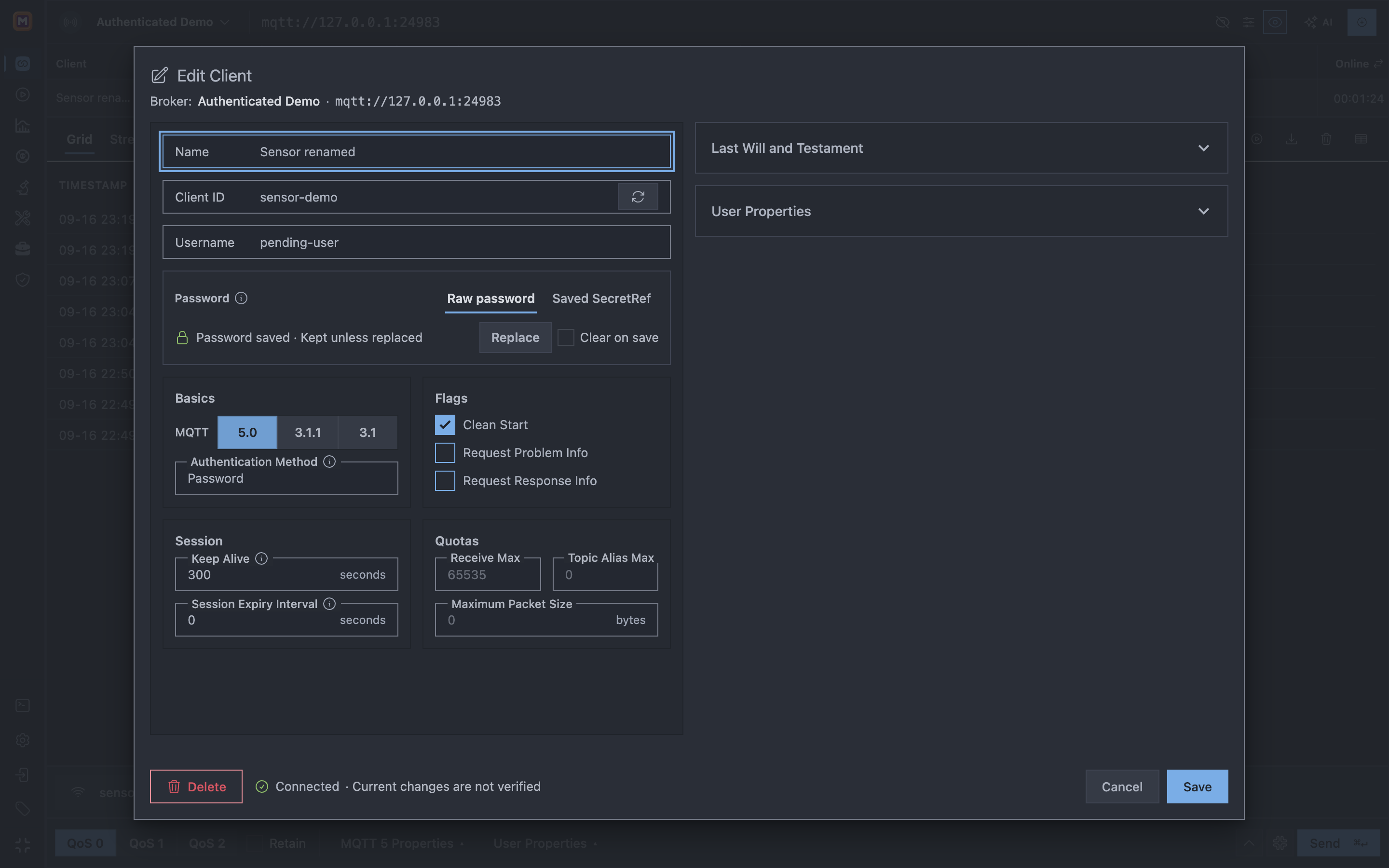
For an already connected Client, the footer shows Connected instead of a test button. If you edit connection parameters while it remains online, it also shows Current changes are not verified: the existing connection does not validate your unsaved edits. Connecting and reconnecting states also suppress duplicate tests. No automatic disconnect is performed; the normal Save behavior remains unchanged. Runtime status updates do not overwrite your draft.
An online Client shows its runtime status instead of a test action. Unsaved connection changes remain explicitly unverified.
1Connected is the current runtime state; the unsaved username edit is not verified.
Connect and verify
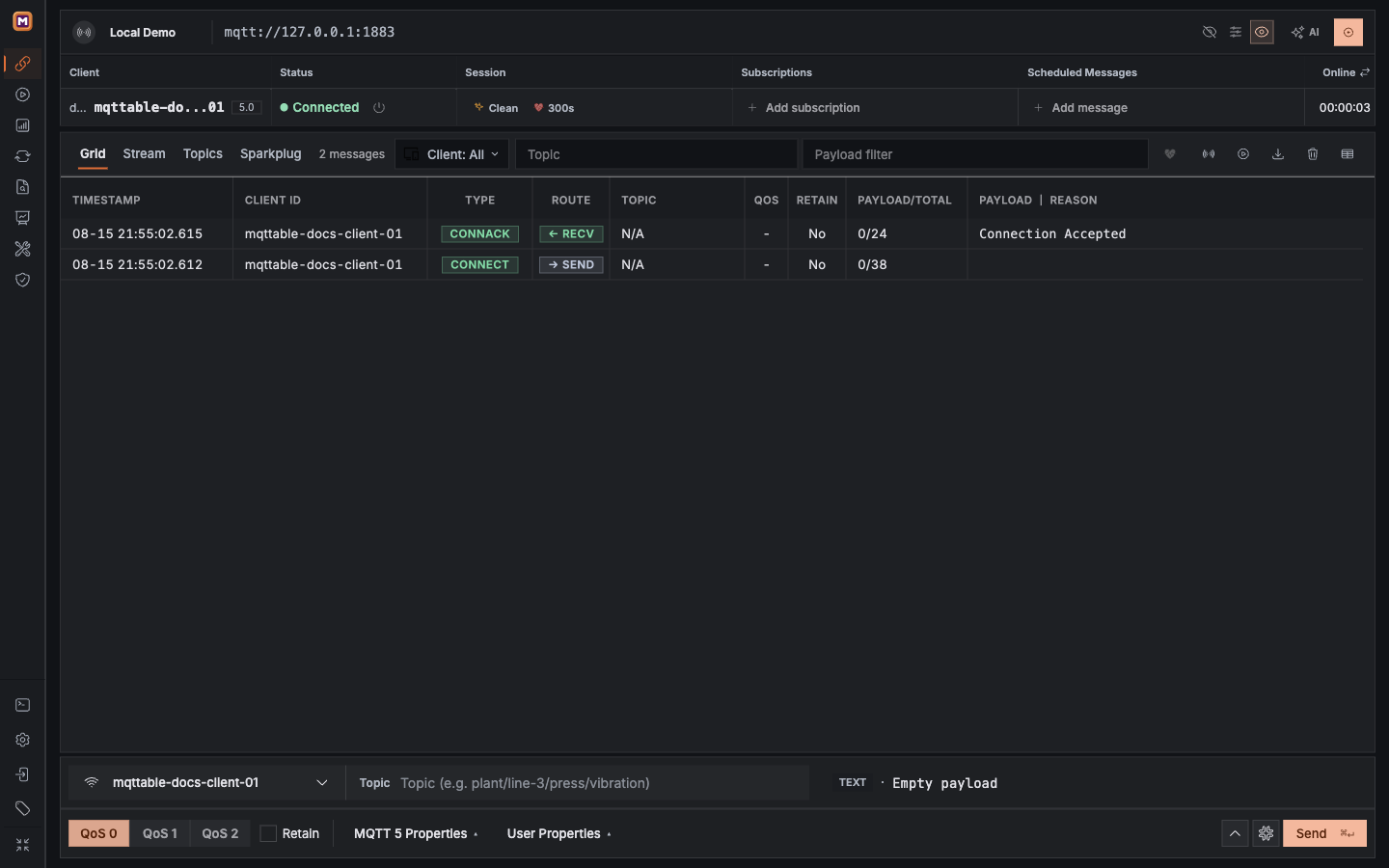
Select Start, then check three places:
The client state is Connected, not Connecting or Retrying.
The Session column shows session settings and the configured Client authentication method, such as Clean, 300s, and Password. Authentication labels describe the saved Client configuration, not an authentication result reported by the broker. No passwords or tokens are displayed.
Trace shows an outgoing CONNECT, followed by an incoming CONNACK with Connection Accepted.
Connected plus CONNECT/CONNACK proves that the current MQTT Session was established.
1The state is Connected and the row includes the session summary.
2The client sends CONNECT and the Broker returns CONNACK.
3Connection Accepted confirms this MQTT connection attempt succeeded.
Connected does not prove Topic permission or message delivery. Use the first MQTT message tutorial to verify subscribe, publish, and Trace.
Quick troubleshooting
A saved Connection cannot connect or drops unexpectedly: Mqttable shows Retrying and retries automatically—after 10 seconds when a connection attempt fails, or after 5 seconds when an active connection drops. It keeps retrying until the client connects or you select Stop.
Test Connection fails: This is a one-off endpoint check and does not enter the automatic reconnect loop. Check Host, Port, DNS, firewall, and whether the listener is running.
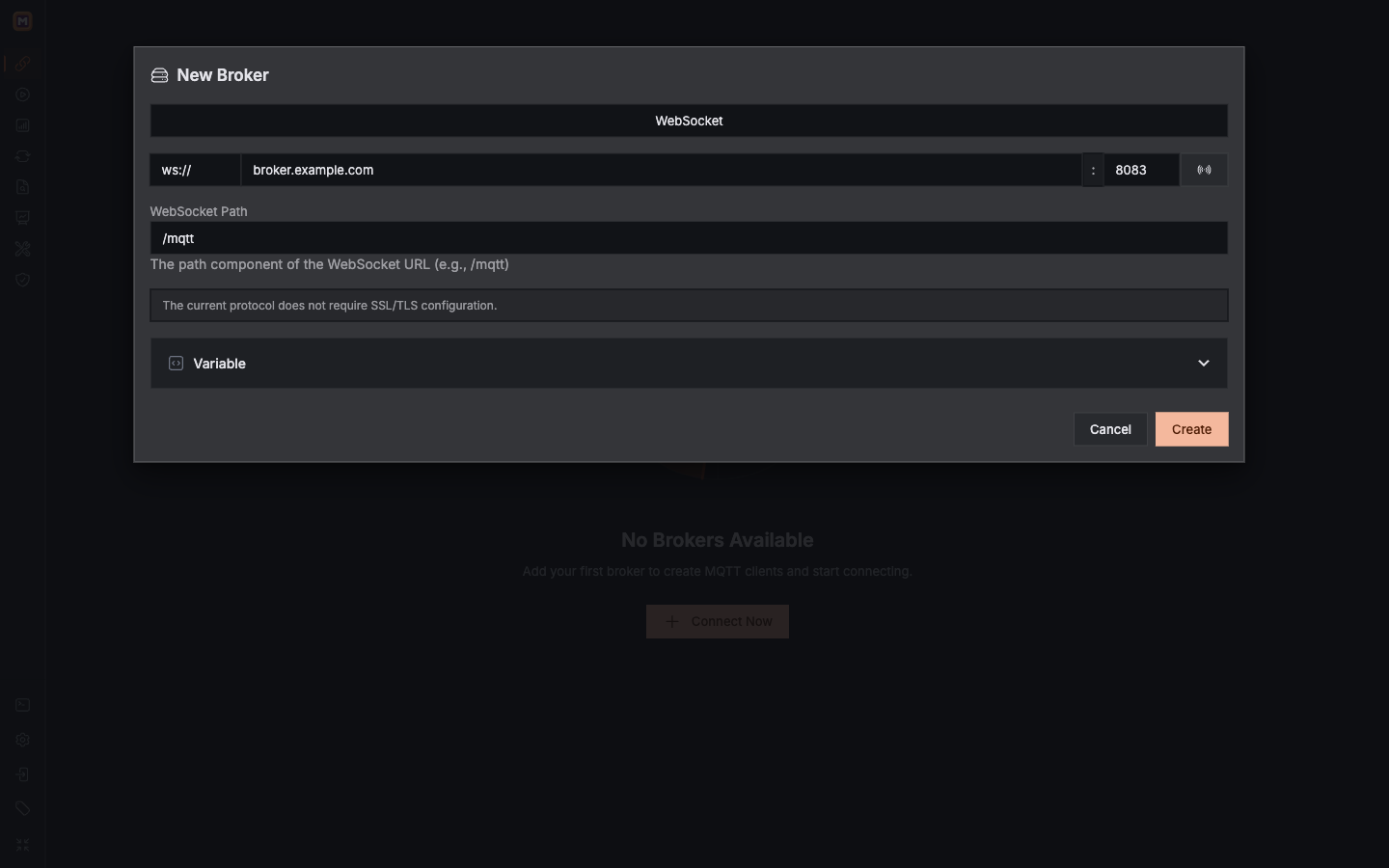
TLS or WebSocket fails: Check the CA, server name, client certificate, and WebSocket Path.
CONNACK is rejected: Check the MQTT version, Client ID, and authentication material.
Connected but cannot publish or subscribe: Check the Topic ACL instead of changing the endpoint again.